Automate Invoice Data Entry with AI (PDFs, Scans, and Emails)
Table of Contents
- What Is Automated Invoice Data Entry?
- What Does Manual Invoice Data Entry Actually Cost?
- How Does the AI Extraction Workflow Work?
- How Does Vendor Matching Work?
- How Does Confidence Scoring Prevent Bad Data?
- What Happens with Real Invoices?
- Scenario A: Clean PDF (Meridian Supply Co.)
- Scenario B: Email Body Invoice (Acme Widgets LLC)
- Scenario C: Damaged Scan (Green Valley Industrial)
- What Is the ROI on Automating Invoice Data Entry?
- How Does This Connect to Your Existing Systems?
- Is Your AP Team Ready for This?
- What Should You Do Next?
What Is Automated Invoice Data Entry?
Automated invoice data entry uses AI document intelligence to read invoices in any format and extract every field your accounting system or ERP needs, without anyone typing a single number. The AI reads PDFs, scans, photos, and even invoices typed directly into an email body, then validates what it found and routes the results based on how confident it is in each field.
This article walks through the automation I built and demoed in the video above. If you want the general guide on invoice processing automation, start with how to automate invoice processing without changing your software. This post focuses on the specific workflow, the three demo scenarios, and the confidence-scoring system that keeps bad data out of your books.
What Does Manual Invoice Data Entry Actually Cost?
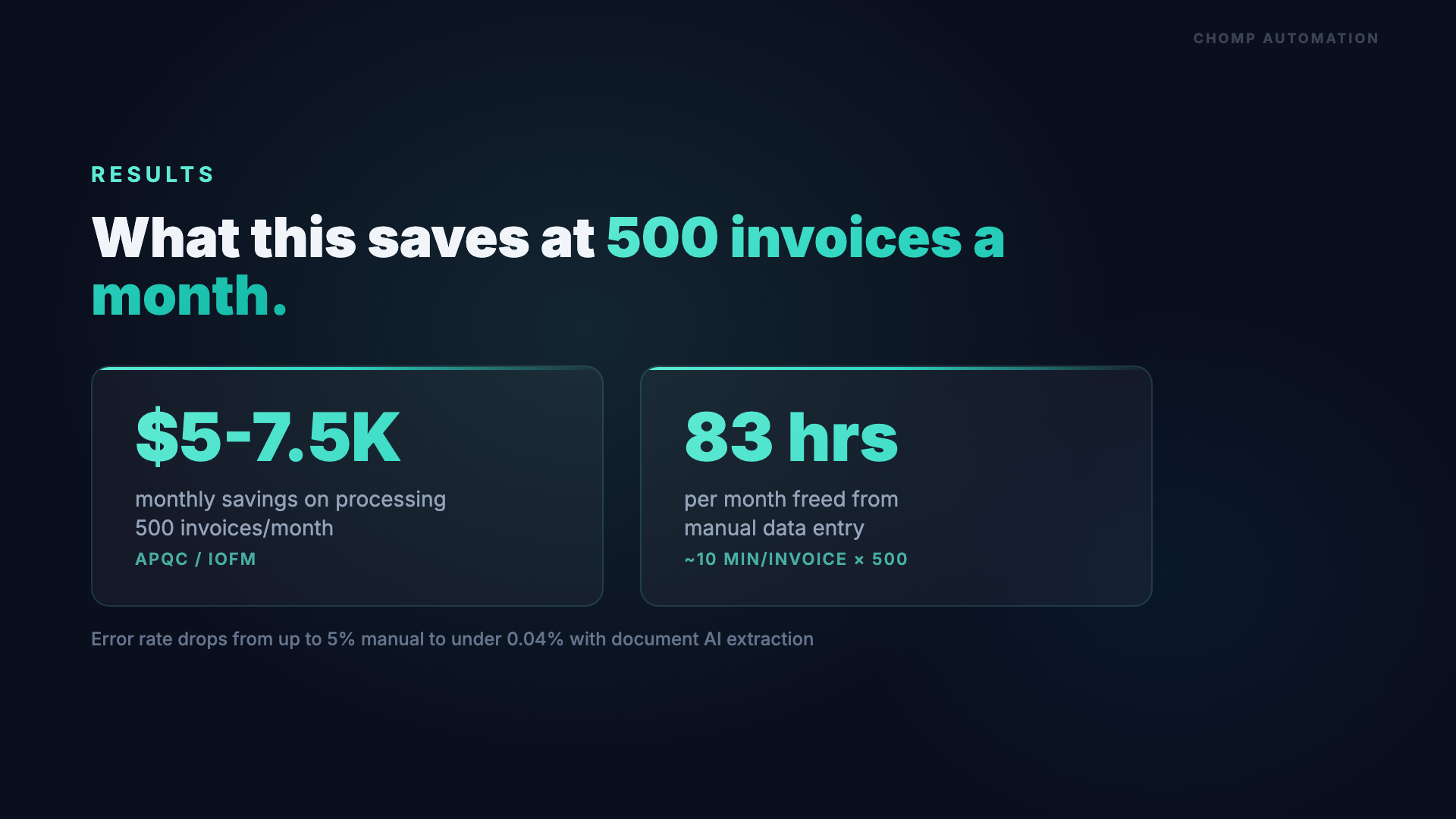
Each invoice your AP team keys in by hand costs between $10 and $15 in labor, according to AP industry benchmarks. The average invoice takes about 10 minutes to key manually once you account for opening the document, reading each field, typing it into your system, verifying the entry, and filing the original. At 500 invoices per month, that is 83 hours of staff time spent retyping numbers that already exist on a piece of paper.
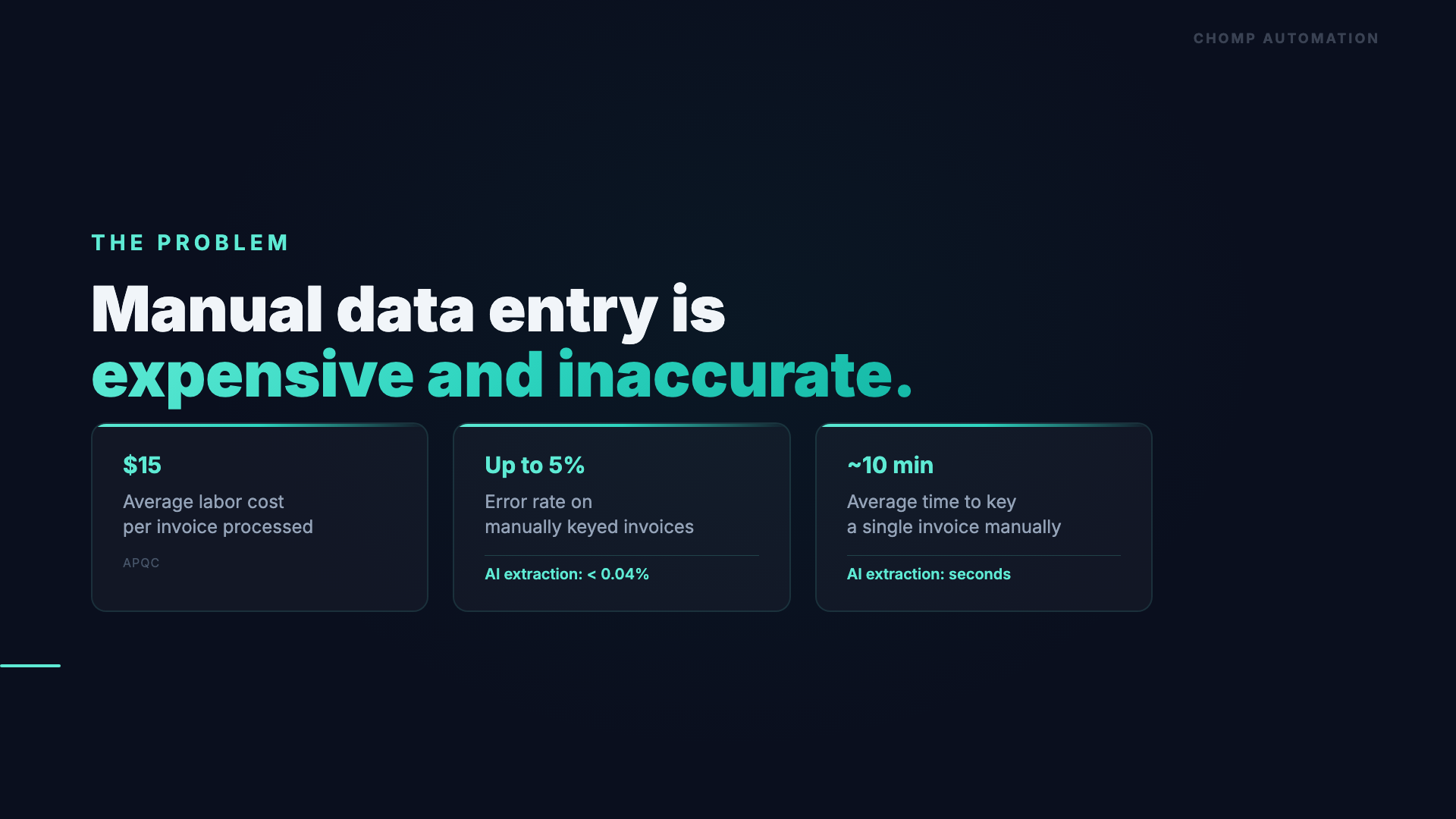
The labor cost is only part of it. Manual data entry carries error rates of up to 5% when entries are not double-verified, and each error costs an average of $53.50 to correct once you factor in the investigation, vendor communication, and rebooking. By contrast, AI document intelligence extraction achieves accuracy rates of 99.959% to 99.99%, bringing the effective error rate below 0.04%.
The fix is not hiring more AP staff. It is letting AI handle the extraction and only involving humans when something looks off. That is what the workflow below does.
How Does the AI Extraction Workflow Work?
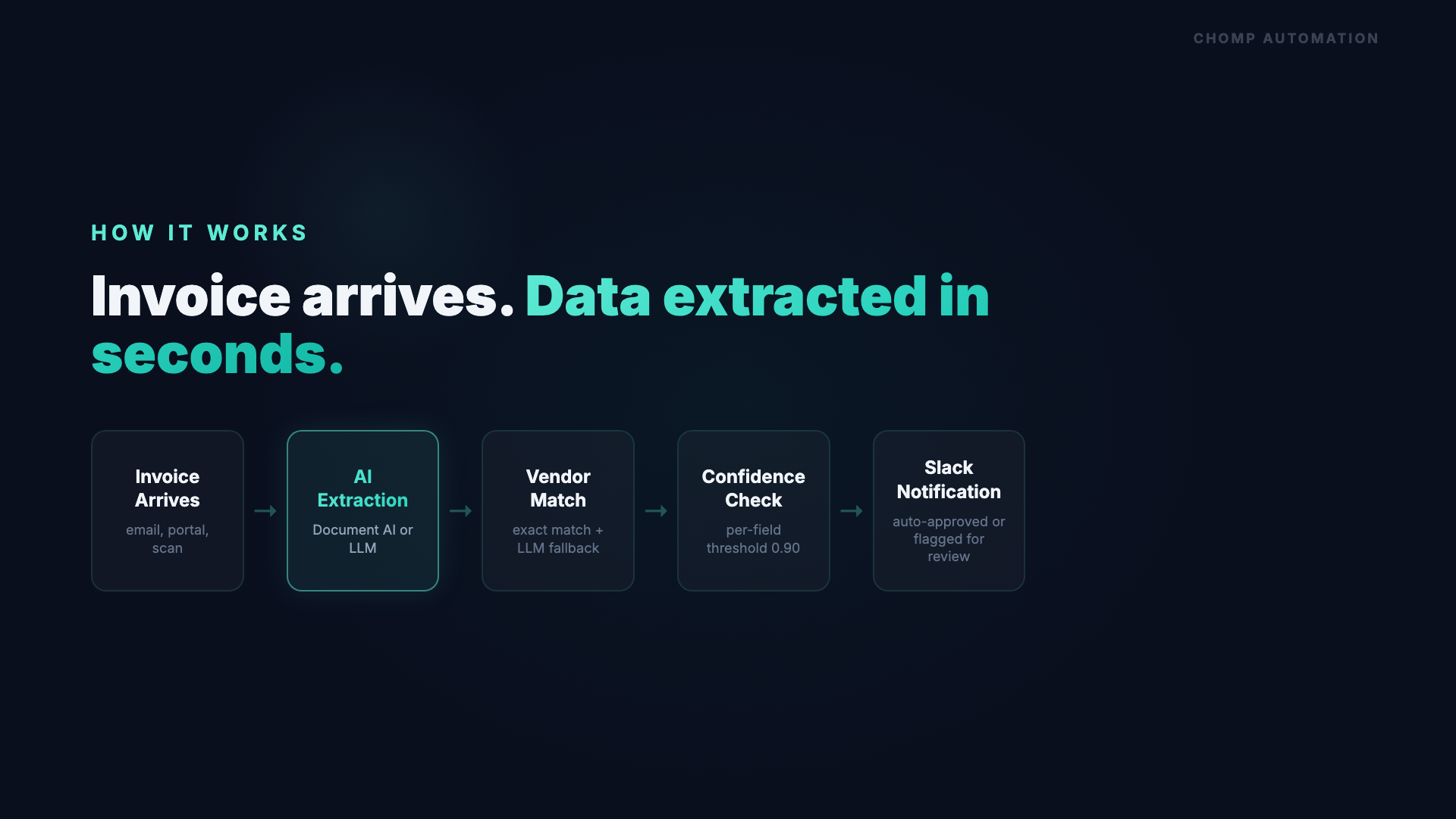
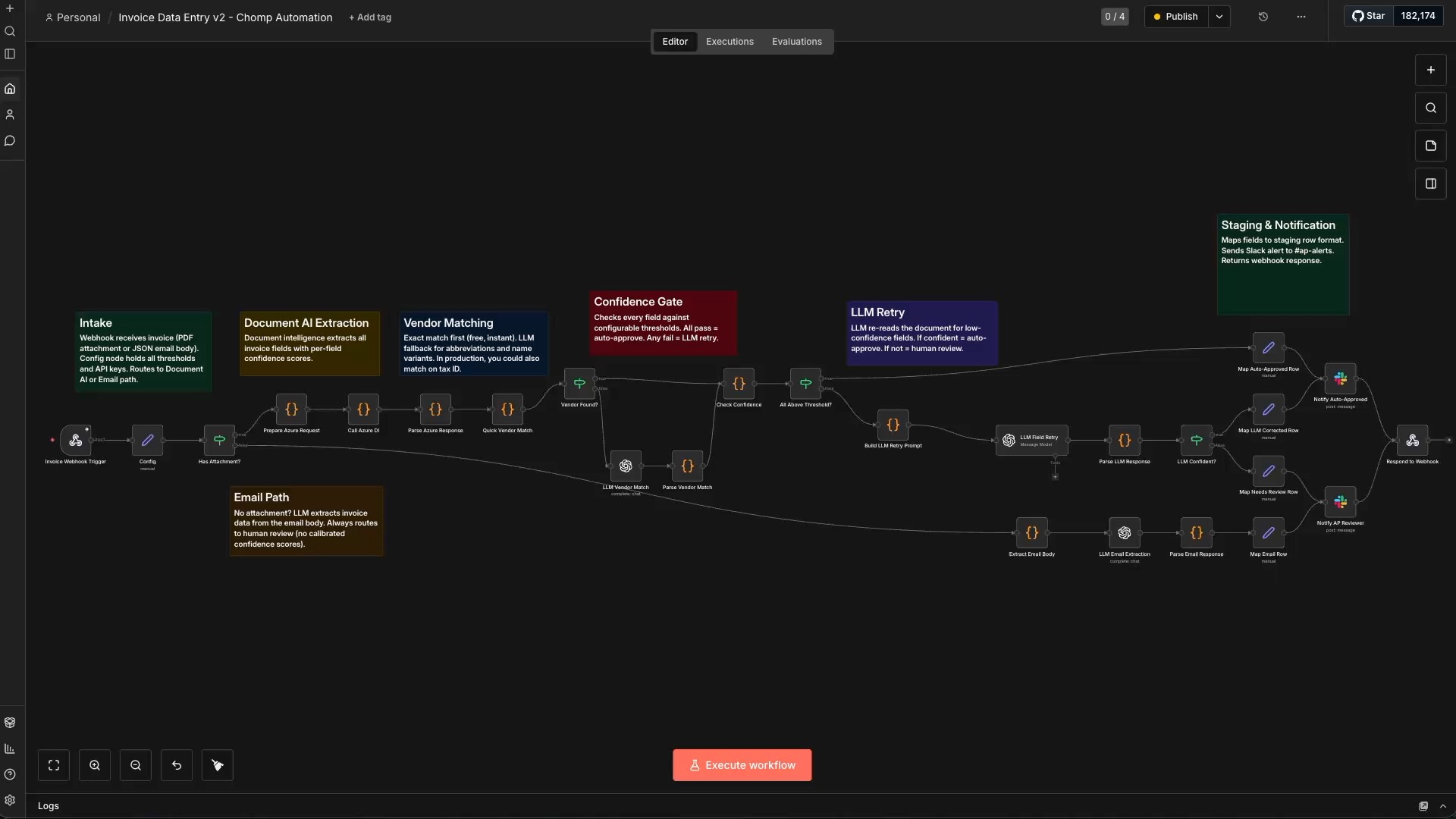
The workflow handles invoices from any source and any format through a branching pipeline. An invoice arrives, the system determines what kind of document it is, extracts the data, validates it against your vendor records, checks each field’s confidence score, and routes the result.
The Extraction Pipeline
- 1
Invoice arrives via webhook
The workflow triggers whenever an invoice comes in through email, a vendor portal, or any other source. A webhook captures the incoming data and kicks off the pipeline.
- 2
Format detection: attachment or email body?
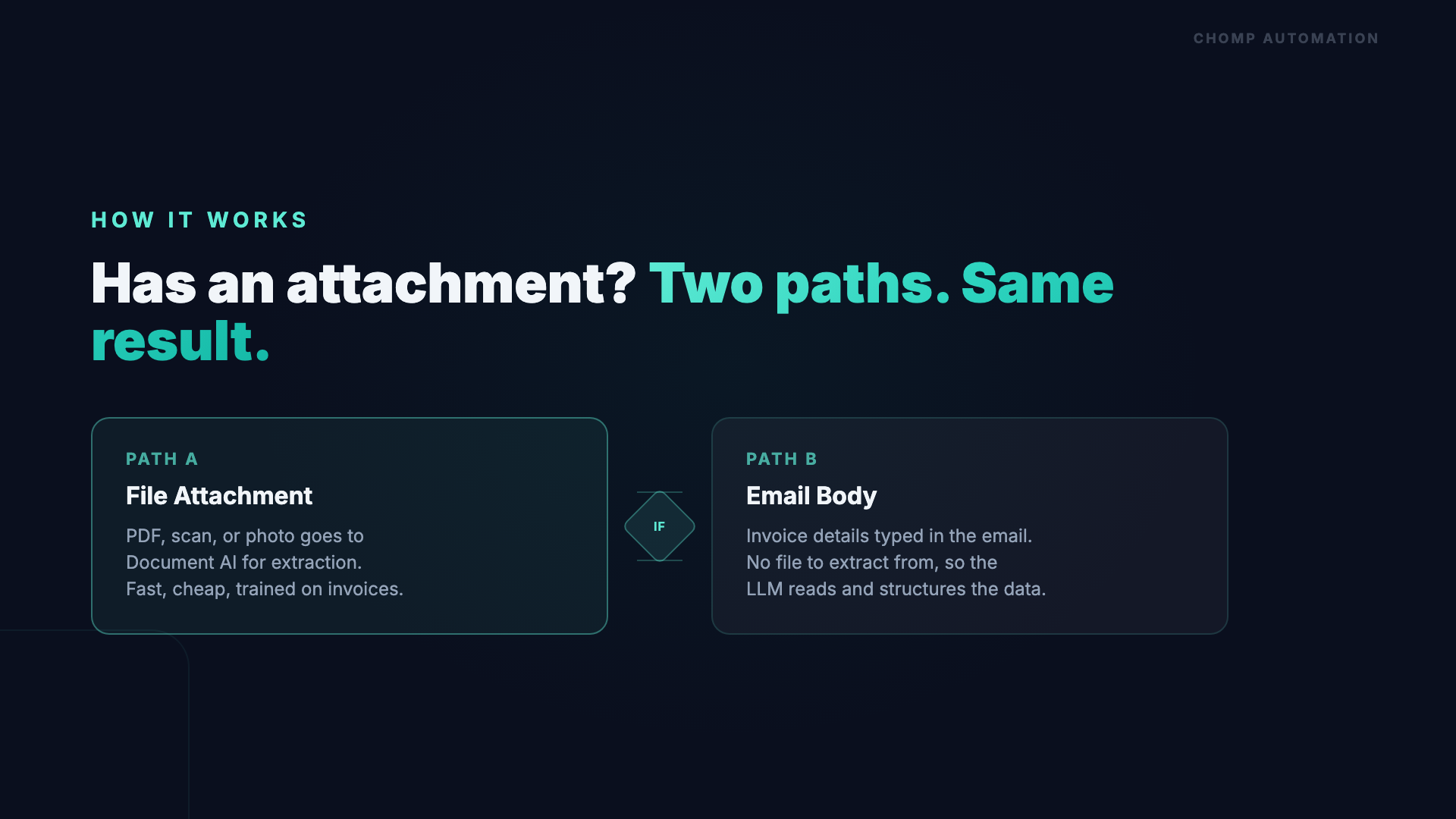
The first check is simple: does the email have a file attached? If yes, the document goes to AI document intelligence. If no, the email body text goes to a large language model for extraction.
- 3
AI document intelligence extracts fields
For PDF, scan, or photo attachments, the document goes to Microsoft's Azure Document Intelligence, which is built specifically for invoices. It extracts vendor name, invoice number, dates, amounts, line items, and PO references. Each field comes back with a calibrated confidence score between 0 and 1.
- 4
LLM extracts from email body (alternate path)
When the invoice details are typed directly into the email with no attachment, the workflow sends that text to a large language model with an extraction prompt. The output matches the same structured format as the document intelligence path.
- 5
Vendor matching
Your ERP needs a vendor ID, not just a name. The workflow first checks for an exact match in your vendor master list. If there is no exact match, it sends the extracted name to an LLM that can catch abbreviations, punctuation differences, and name variations.
- 6
Confidence scoring and threshold check
Every field's confidence score gets compared against configurable thresholds (default: 0.90). Fields that clear the threshold are confirmed. Fields that fall below get retried with an LLM for a second opinion.
- 7
Routing and notification
If all fields pass, the invoice is auto-approved and your team gets a green-light Slack notification. If the LLM retry still produces low confidence, the invoice goes to your AP reviewer with the flagged fields called out.
How Does Vendor Matching Work?
This is one of those steps that used to require a human every time. Azure Document Intelligence gives you a vendor name like “MERIDIAN SUPPLY CO,” but your ERP lists that vendor as “Meridian Supply Company” with ID V-1001. An exact string match fails.
The workflow handles this in two steps. First, it tries a direct lookup against your vendor master list. If that returns nothing, it sends the extracted name along with your full vendor list to an LLM. The LLM recognizes that “Meridian Supply Co” and “Meridian Supply Company” are the same business, accounting for abbreviations, punctuation, and formatting differences. When available, the workflow also cross-references tax IDs or vendor numbers from the invoice for a stronger match.
This is a good example of where AI adds value that rule-based automation cannot. A string comparison would miss the match. The LLM understands it.
How Does Confidence Scoring Prevent Bad Data?
Every field extracted from a document comes back with a confidence score between 0 and 1. A score of 0.96 on an invoice number means the AI is very confident it read that field correctly. A score of 0.39 on a total amount means something is wrong, maybe a damaged scan, maybe overlapping text.
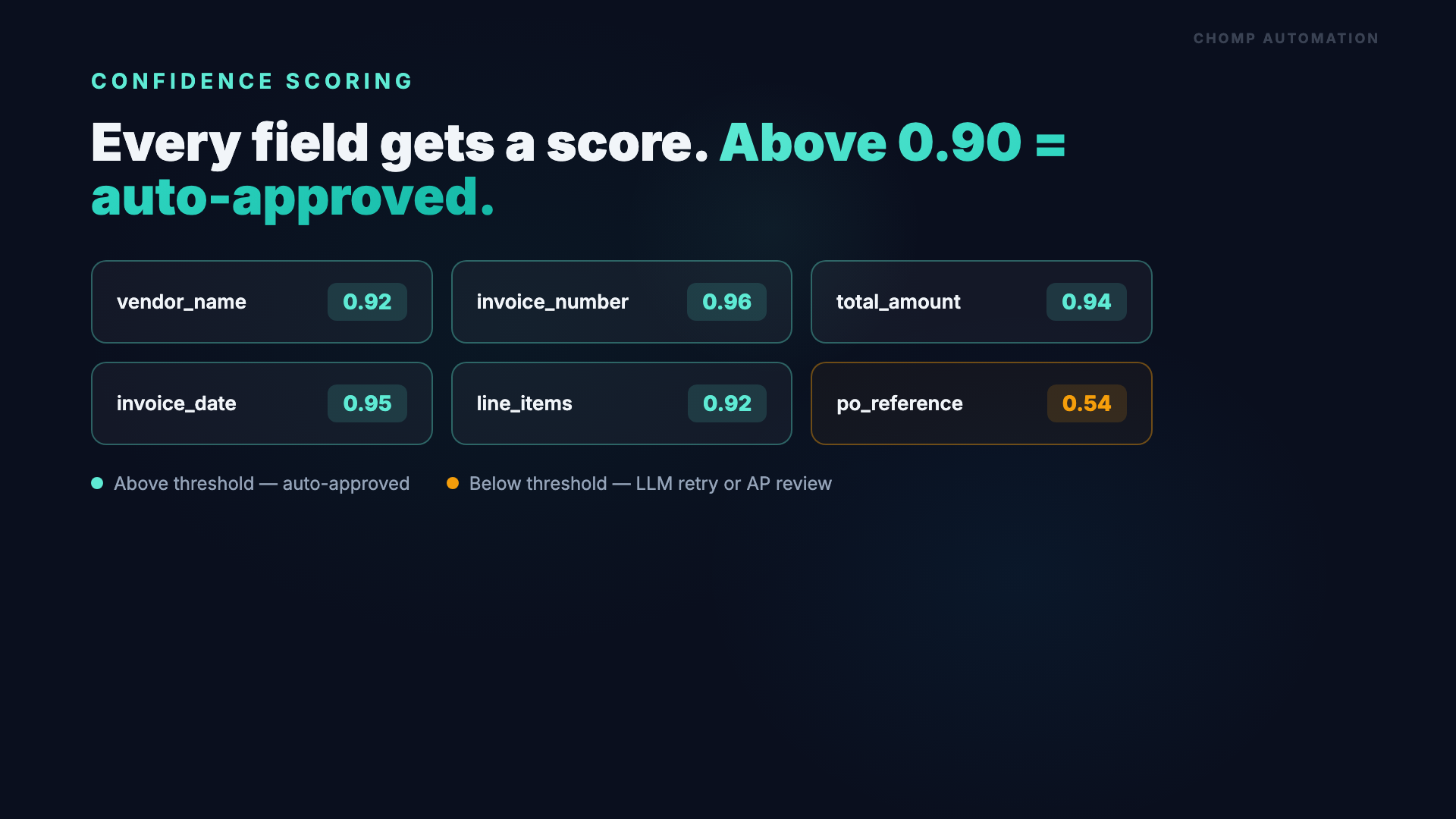
The workflow uses configurable thresholds stored in a config node. The defaults are:
- All fields: 0.90 confidence minimum
- Vendor name: 0.85 (slightly lower because vendor matching adds a second validation layer)
- Amount fields: 0.90
When a field falls below its threshold, the workflow does not just reject the invoice. It sends the low-confidence fields to an LLM for a retry. The LLM gets the original values, the raw document data, and vendor context. If the LLM produces a confident correction, the invoice moves forward. If the LLM is still uncertain, the invoice goes to a human reviewer with the specific flagged fields highlighted.
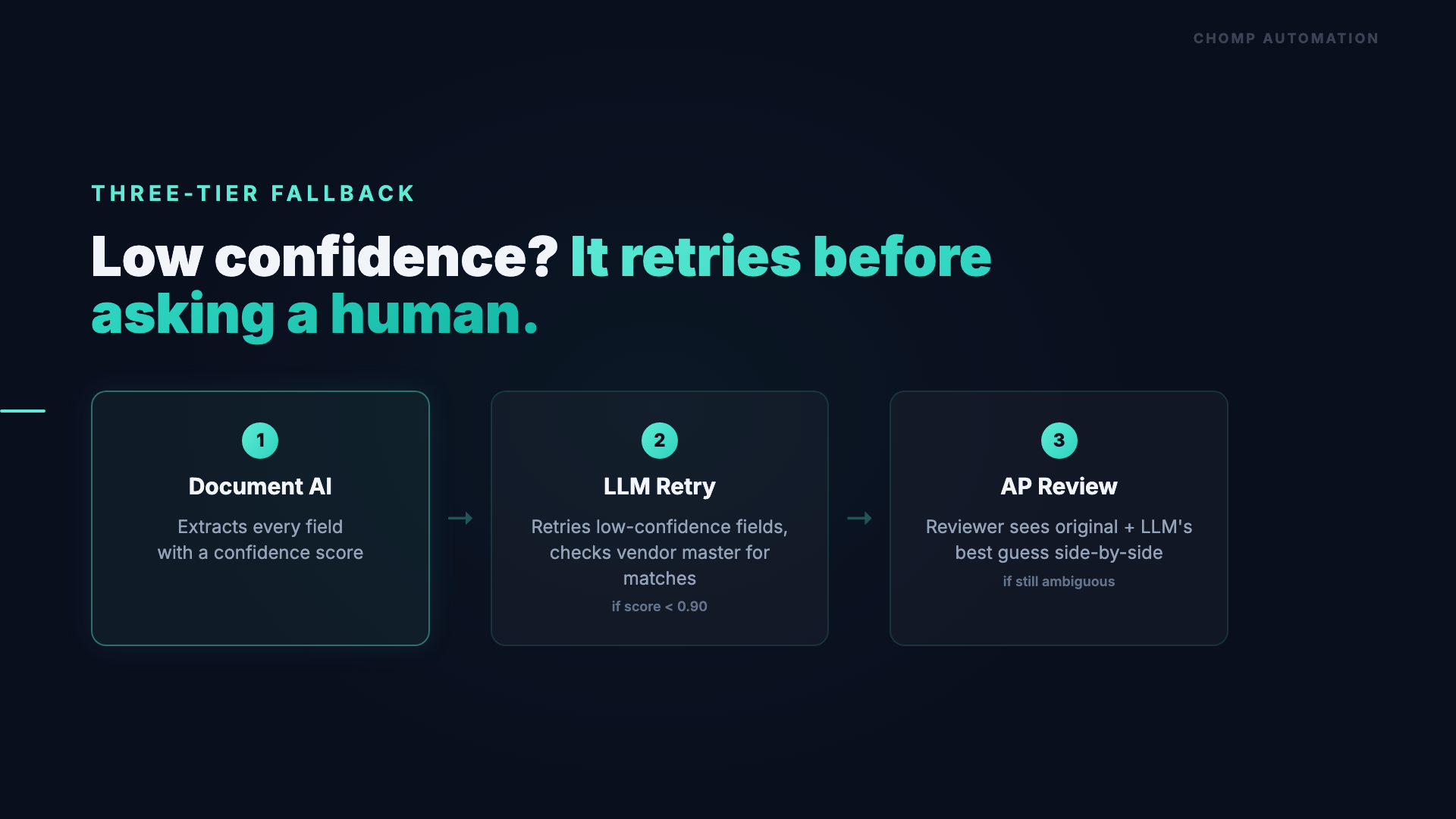
Three-Tier Extraction Fallback
| Tier | What Handles It | When It Fires |
|---|---|---|
| Tier 1 | AI Document Intelligence | Every document attachment (primary extraction) |
| Tier 2 | LLM Retry | Any field below confidence threshold after Tier 1 |
| Tier 3 | Human Review via Slack | LLM retry still produces low confidence or cannot resolve |
This layered approach means your AP team only sees the invoices that genuinely need human judgment. The clear ones go straight through. The ambiguous ones get a second AI opinion. Only the truly uncertain ones land on someone’s desk, and even then, the flagged fields are called out so the reviewer knows exactly where to look.
What Happens with Real Invoices?
The video demonstrates three invoices that cover the most common scenarios: a clean PDF, an email-body invoice, and a damaged scan. Here is what happened with each one.
Scenario A: Clean PDF (Meridian Supply Co.)
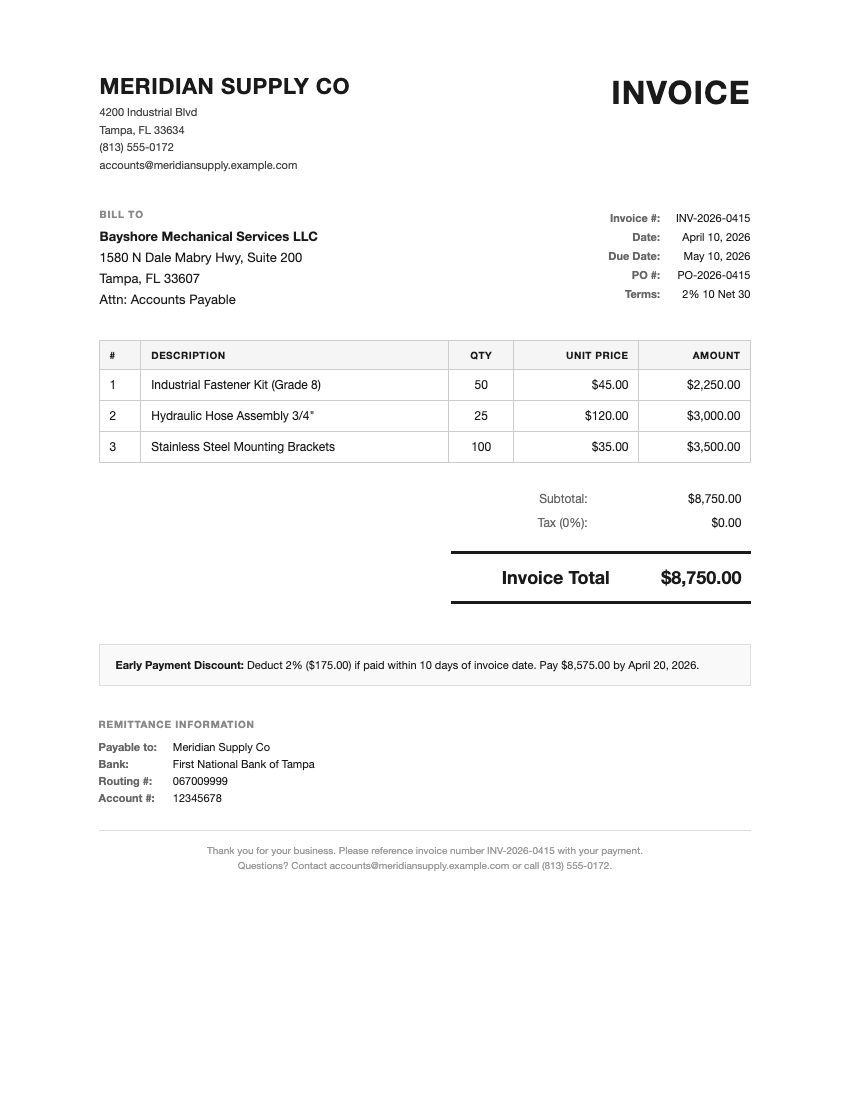
A scanned PDF from Meridian Supply Co. Three line items totaling $8,750.00:
- Industrial Fastener Kit (Grade 8): 50 × $45.00 = $2,250.00
- Hydraulic Hose Assembly 3/4”: 25 × $120.00 = $3,000.00
- Stainless Steel Mounting Brackets: 100 × $35.00 = $3,500.00
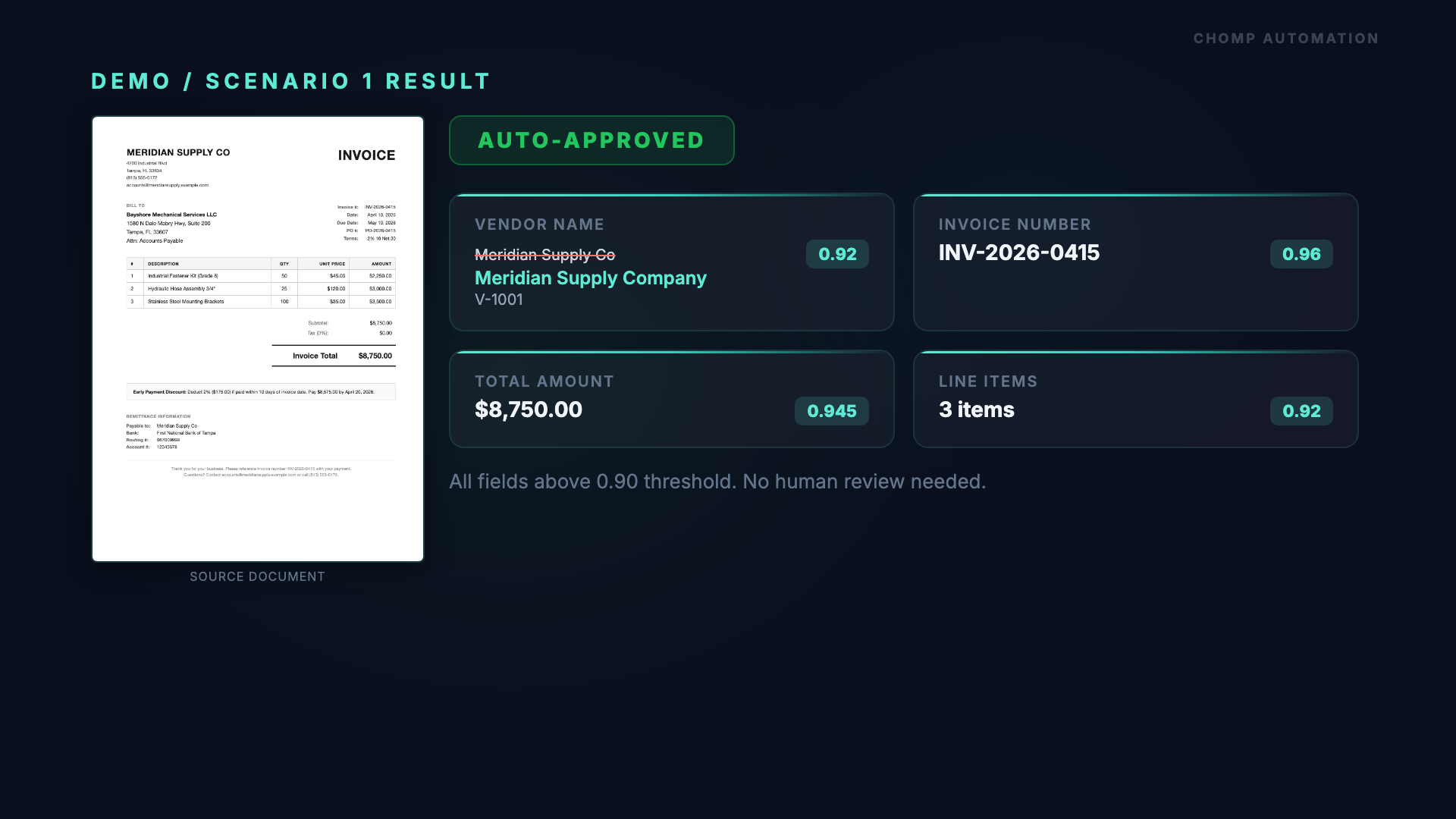
The workflow triggered, Azure Document Intelligence processed the scan, and the vendor match node sent “MERIDIAN SUPPLY CO” to the LLM, which matched it to “Meridian Supply Company” (V-1001). The confidence gate checked every field: vendor name at 0.92, invoice number at 0.96, total amount at 0.945. All above the 0.90 threshold.
Result: auto-approved. A green checkmark hit Slack with the vendor name, vendor ID, invoice number, and amount. No human intervention required. This is the happy path.
Scenario B: Email Body Invoice (Acme Widgets LLC)
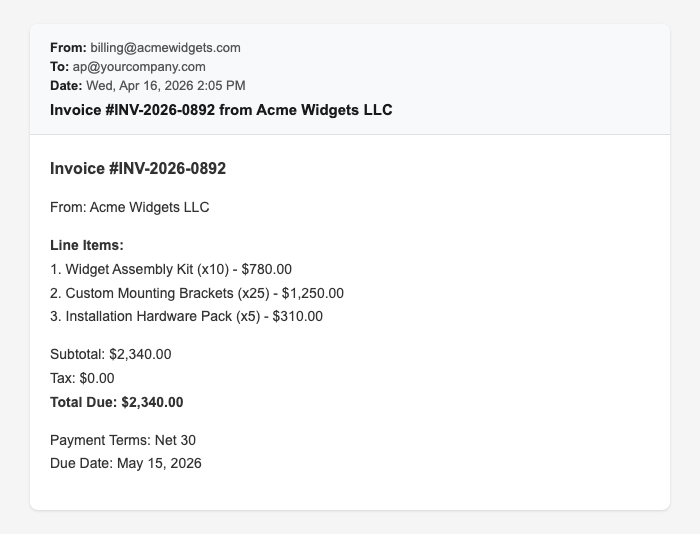
An email from Acme Widgets LLC. No PDF attached. The invoice details, including three line items totaling $2,340.00 with Net 30 payment terms, were typed directly into the email body.
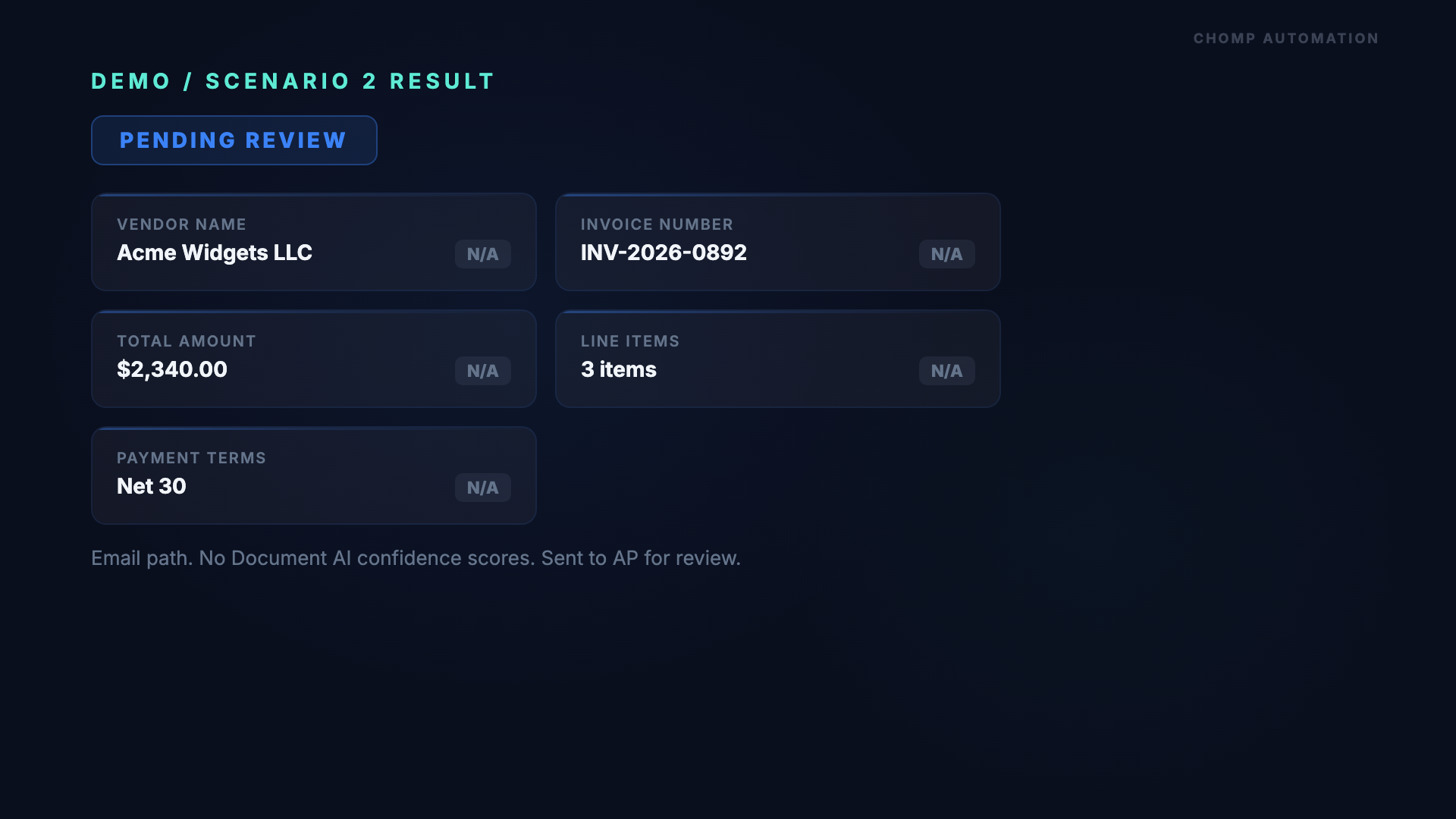
Since there was no document to send to Azure Document Intelligence, the workflow routed the email text straight to the LLM extraction path. The LLM pulled all the fields successfully: vendor name, invoice number (INV-2026-0892), line items, and payment terms.
The email path does not produce calibrated confidence scores the way Azure Document Intelligence does. Because of that, the workflow routes email-extracted invoices to pending_review automatically. This is a deliberate design choice. Few reputable vendors send plain-text invoices in email bodies, so extra caution is appropriate.
Result: pending_review. The AP team gets the extracted data in Slack with all fields populated, ready for a quick confirmation rather than manual data entry from scratch.
Scenario C: Damaged Scan (Green Valley Industrial)
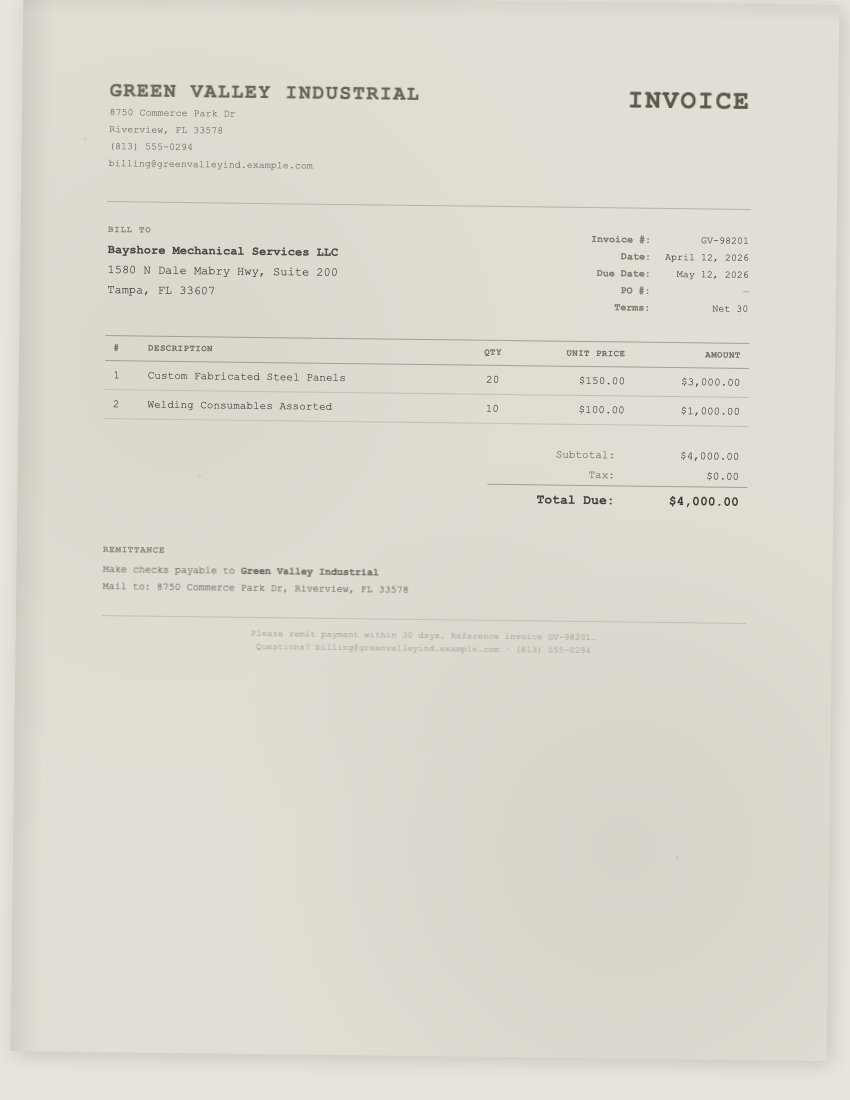
A deliberately degraded scan from Green Valley Industrial. Invoice GV-98201 for $4,000.00. The scan quality was poor enough to challenge the extraction.
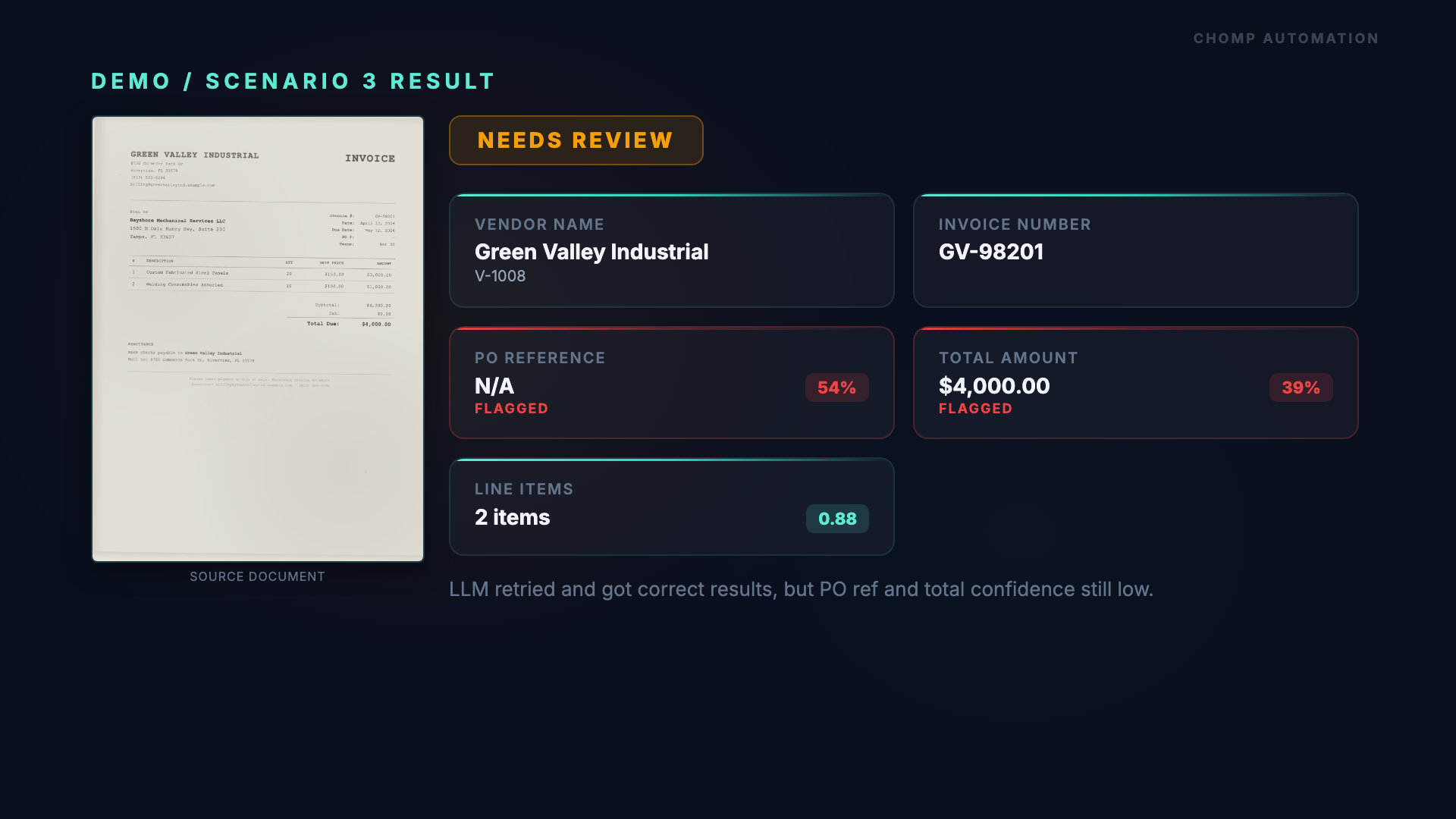
Azure Document Intelligence extracted most fields successfully. Vendor name, invoice number, and the two line items all came back with confidence scores above the threshold (line items at 0.88, comfortably in the green). But PO reference landed at 54% confidence and total amount at 39% confidence, both well below the 0.90 threshold. The LLM retry could not recover those two values.
Result: needs_review. The AP team received a Slack notification with just the two flagged fields called out, so they knew exactly which values to double-check. Instead of keying the entire invoice from scratch, they confirmed or corrected two fields. That is the difference between 10 minutes of data entry and 30 seconds of review.
What Is the ROI on Automating Invoice Data Entry?
The math is simple. Take your monthly invoice volume, multiply by the per-invoice processing cost of $10 to $15, and that is what you are spending on manual data entry labor. At roughly 10 minutes per invoice, 500 invoices per month works out to 83 hours of keying time.
Monthly Savings by Invoice Volume
| Monthly Invoices | Manual Cost (at $12.50 avg) | With AI Automation | Monthly Savings |
|---|---|---|---|
| 100 | $1,250 | ~$125 (review time) | $1,125 |
| 250 | $3,125 | ~$200 | $2,925 |
| 500 | $6,250 | ~$300 | $5,950 |
| 1,000 | $12,500 | ~$500 | $12,000 |
At 500 invoices per month, you are looking at roughly $5,000 to $7,500 in monthly labor savings. The automated system also reduces error rates from an up to 5% manual baseline to under 0.04% with document AI extraction, which means fewer correction cycles, fewer vendor disputes, and cleaner books at month-end.
The accuracy improvement matters beyond just time savings. Each invoice error costs an average of $53.50 to resolve. At 500 invoices per month with a 5% error rate, that is 25 errors costing $1,337 per month in rework. Cutting the error rate to under 0.04% eliminates nearly all of that, saving over $1,300 per month in correction costs alone, on top of the labor savings.
How Does This Connect to Your Existing Systems?
This workflow plugs into whatever ERP or accounting system you already use. It reads invoices from any source (email, vendor portal, shared folder) and outputs structured data through an API. Your QuickBooks, NetSuite, Sage, or Xero setup stays exactly as it is.
There is no platform to migrate to, no software to replace, and no team retraining. The automation sits between your invoice sources and your accounting system, handling the data extraction that used to be manual. For a deeper look at how automation wraps around your existing tools, see the general guide on automating invoice processing.
Once invoice data entry is running automatically, the natural next layer is duplicate payment detection. The same data feeding into your ERP can be cross-checked against existing invoices and purchase orders to catch double payments before money goes out the door. From there, automated invoice approval routing sends each invoice to the right approver based on your delegation of authority rules. Together, these automations cover the highest-cost manual steps in most AP operations.
For businesses earlier in their automation journey, invoice data entry is one of the highest-ROI starting points. It falls squarely in the bookkeeping and back-office automation category where the savings are clearest. The process is repetitive, the data is structured, and the savings are immediate and measurable.
Is Your AP Team Ready for This?
If any of these sound familiar, automated invoice data entry would make an immediate impact:
Signs you should automate invoice data entry
- Your AP team spends more than 10 hours per week on manual invoice entry
- You process invoices from multiple formats (PDF, email, scans, vendor portals)
- Error rates on entered invoices are causing vendor disputes or reconciliation delays
- Invoice volume is growing but headcount is not
- Month-end close is delayed by data entry backlogs
- You have already looked into automating accounts payable but have not started with data entry
What Should You Do Next?
The workflow shown in this video is available as a free download. It includes the extraction prompts, confidence thresholds, vendor lookup logic, and Slack notification setup.
Download the free invoice data entry workflow
If you want to see how AI catches duplicate payments (which on average account for 1-2% of total AP spend), watch the duplicate payment detection walkthrough.
Chomp Automation is based in Tampa, FL and builds invoice automation for businesses across the country. Book a free call if you want this workflow built and customized for your systems.
About the Author

Chad H.
(opens in new tab)Founder of Chomp Automation. Engineer with enterprise AI experience at Microsoft who builds automation systems for businesses growing faster than their systems can handle.